
Allegro Ads schedules: run ads only when customers are buying
In the Allegro Ads panel you can set campaign dates, but you can't schedule changes by the hour. As a result, part of your budget goes to the night and early morning, when sales are lowest. Mink schedules automatically turn campaigns on and off and change CPC and the daily budget on the days and hours you choose.
- A schedule is: actions + days and hours on a weekly grid + campaigns.
- Actions: turning a campaign on or off, changing CPC, and changing the daily budget by an amount or a percentage.
- CPC and budget changes apply only during the scheduled hours. Outside them, the campaign returns to its own settings.
- Hours are Polish time, and Mink checks schedules every minute.
What a schedule does
Allegro Ads charges for clicks around the clock. A click at 3:00 costs the same as one at 20:00, even though the chance of a purchase is completely different. In many stores most orders come in during the evening, while at night ads mostly burn through the budget.
A schedule makes the changes you would otherwise have to make by hand at set times. It can:
- control campaign status: turn the campaign on during the scheduled hours and off outside them, or the other way around,
- change CPC during the scheduled hours by an amount or a percentage (from -99% to +200%),
- change the daily budget during the scheduled hours by an amount or a percentage.
When the scheduled hours end, CPC and budget go back to the values set in the campaign. You don't need to undo anything.
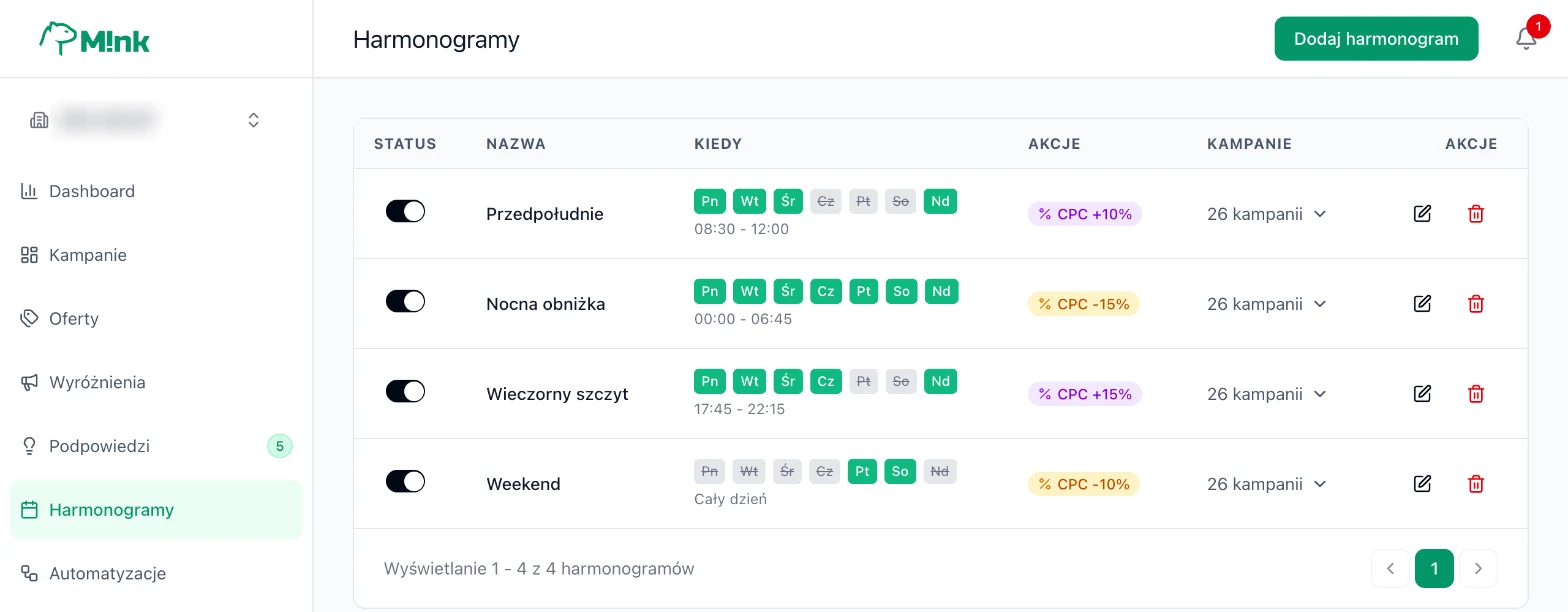
Step-by-step setup
In the menu, choose Schedules ("Harmonogramy") and click Add schedule ("Dodaj harmonogram"). The wizard has three steps.
-
Actions: what should happen
Turn on at least one of the three actions:
- Campaign status control ("Sterowanie statusem kampanii"): choose "Turn on during scheduled hours" ("Włącz w zaplanowanych godzinach"; outside them the campaign is off) or "Turn off during scheduled hours" ("Wyłącz w zaplanowanych godzinach").
- CPC change ("Zmiana CPC"): an amount in PLN or a percentage on the slider. A positive value raises the bid, a negative one lowers it.
- Daily budget change ("Zmiana budżetu dziennego"): same as above, by amount or by percentage.
You can combine actions. In the screenshot below, an evening schedule raises CPC by 20% and adds 30 PLN to the daily budget.
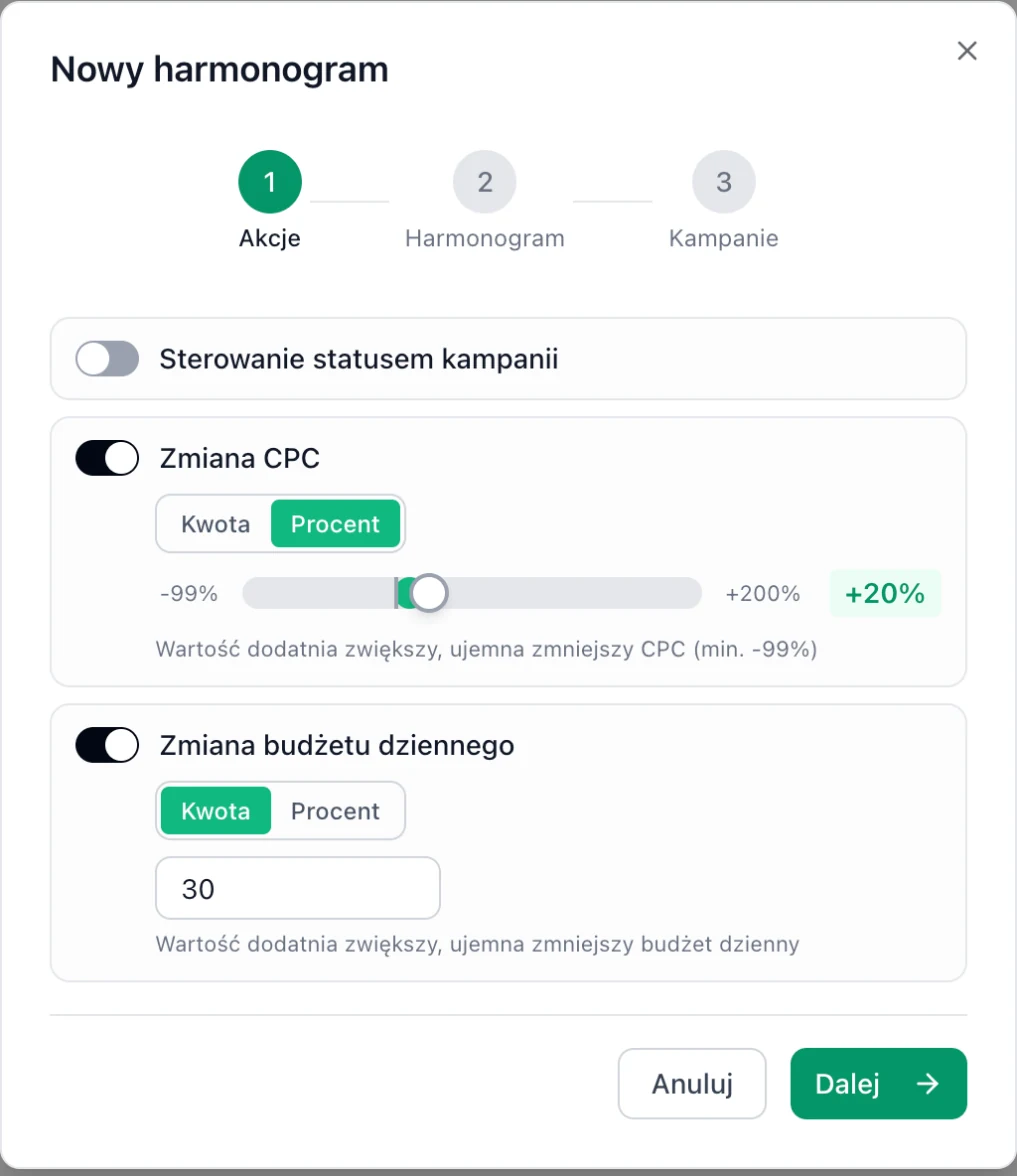
Step 1, Actions ("Akcje"): CPC change +20% and daily budget +30 PLN. -
Schedule: name, days and hours
Give it a name that says what the rule does, e.g. "Evening peak" or "Overnight pause". Then select the hours on the weekly grid. Click single slots or drag across several. The shortcuts All ("Wszystkie"), Mon-Fri and Clear ("Wyczyść") speed things up.
One slot is one full hour of Polish time: slot "19" means 19:00-20:00. In the screenshot, 19, 20 and 21 are selected, so the schedule runs from 19:00 to 22:00, Monday through Thursday and on Sunday.
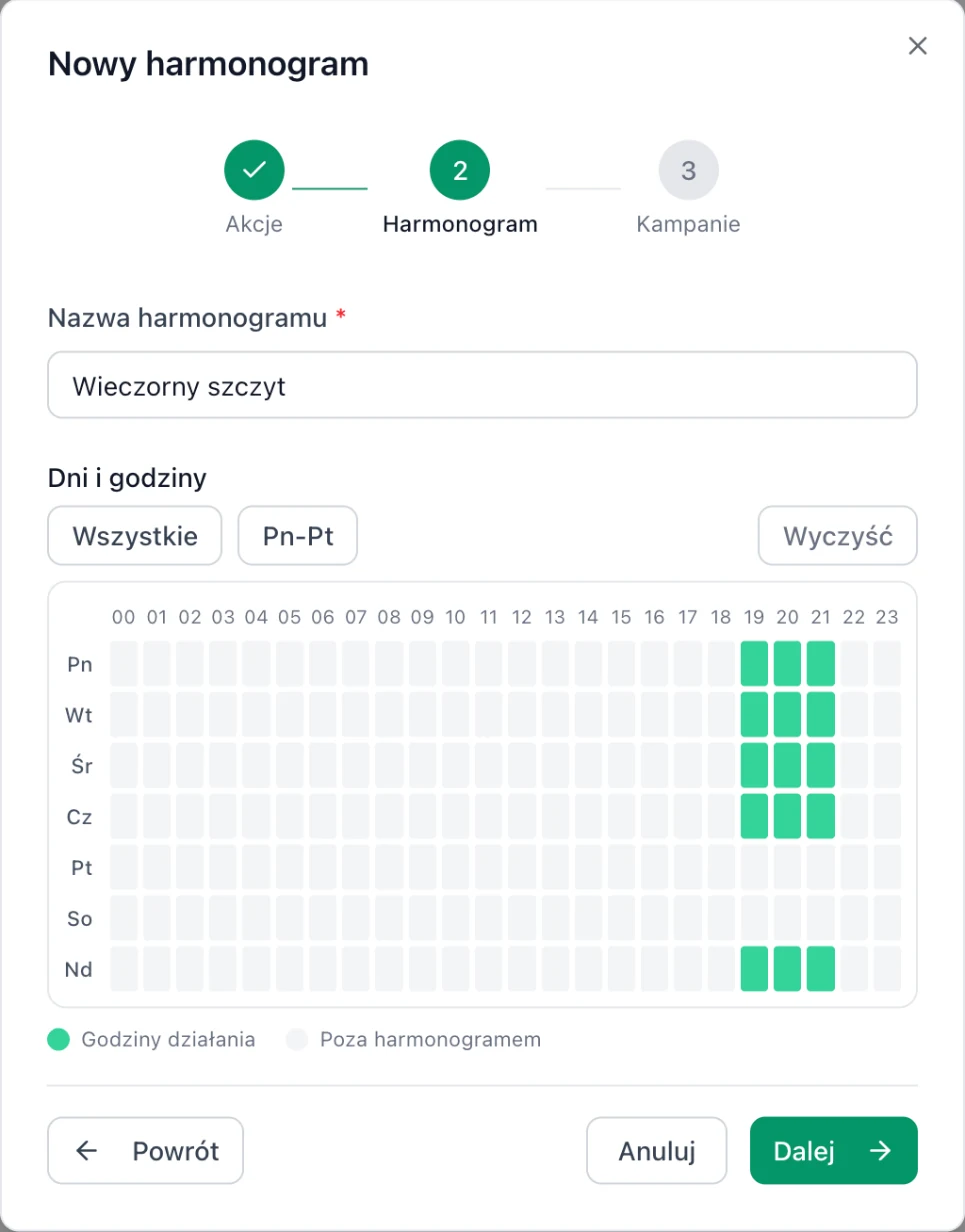
Step 2, Schedule ("Harmonogram"): the weekly grid with the hours 19:00-22:00 selected. -
Campaigns: what to assign it to
Select the campaigns the schedule applies to. The search box and the Active / Inactive ("Aktywna / Nieaktywna") filter help, and the Select all ("Zaznacz wszystkie") button selects the whole list. Finally, click Save schedule ("Zapisz harmonogram").
A good practice is to group campaigns with a similar sales rhythm in one schedule, e.g. campaigns from the same category.
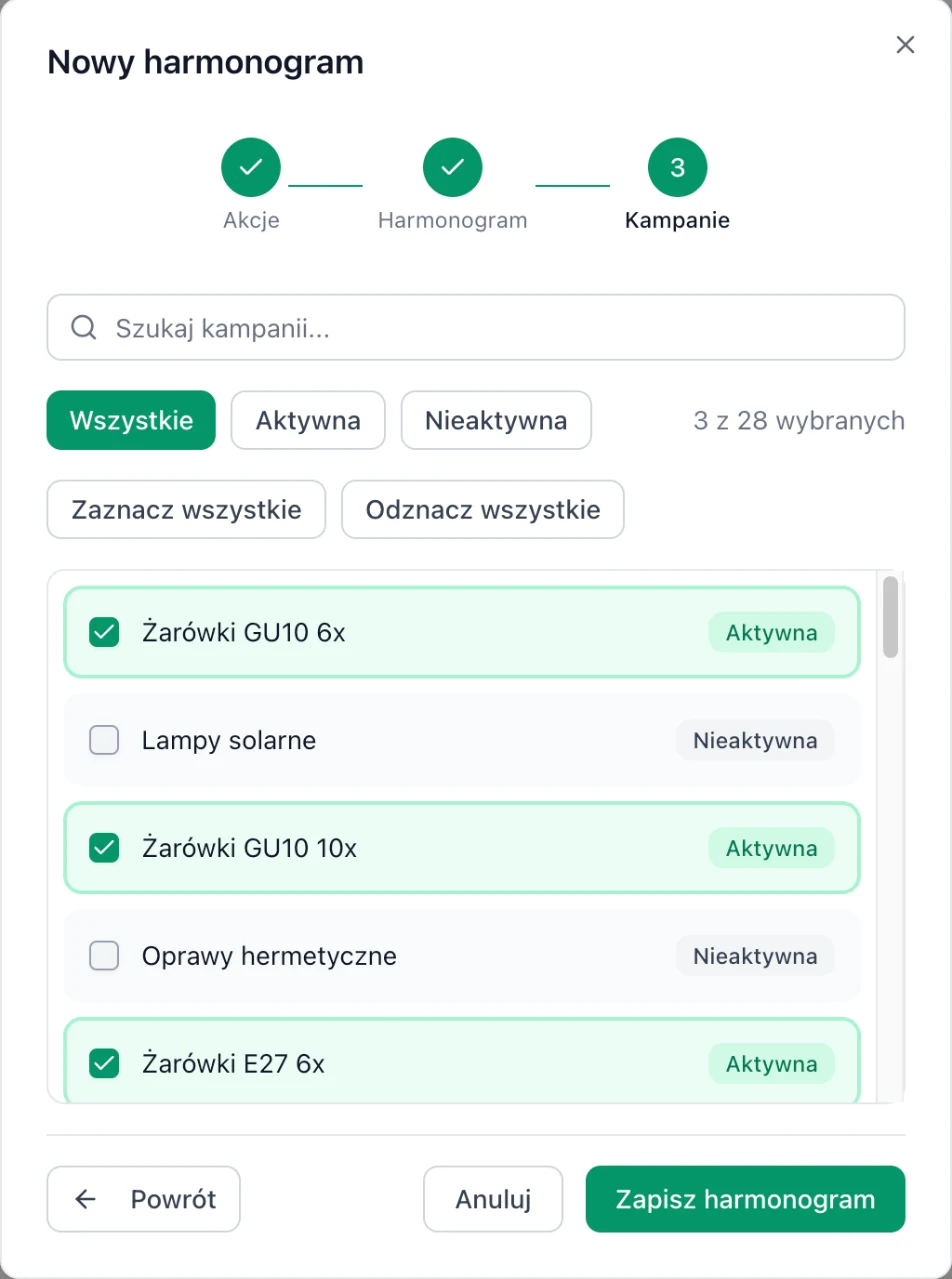
Step 3, Campaigns ("Kampanie"): choosing campaigns and saving the schedule.
Other ways to assign a schedule
- In the manual campaign form, in the Schedules section. You can also add a new schedule right there.
- From the Suggestions ("Podpowiedzi") item "Add schedule", which creates a schedule for that campaign's peak hours.
In the campaign table, the calendar icon next to the status shows which schedules are assigned to the campaign.
A free audit shows in 10 seconds which campaigns are losing money and where you're overpaying for CPC. No sign-up needed.
6 use cases
The settings below are starting points. Match the hours to your own sales (more on that in the next section).
1. Overnight pause
All days · slots 23 and 00-05 (23:00-6:00) · Turn off during scheduled hours
The simplest schedule and usually the fastest payoff. For 7 hours at night, ads don't use up the budget, and at 6:00 they come back automatically. Works well in considered-purchase categories: furnishings, lighting, electronics.
2. Evening peak
Mon-Thu and Sun · slots 19-21 (19:00-22:00) · CPC +20%, daily budget +30 PLN
In the evening, customers compare offers and buy. A higher bid gets you better positions exactly when a click is most likely to end in a purchase, and the extra budget makes sure it doesn't run out before the peak. At 22:00 both values return to normal.
3. Cheaper nights instead of a pause
All days · slots 00-06 (0:00-7:00) · CPC -15%
In impulse categories (fashion, cosmetics, gadgets), people buy at night too. Instead of turning ads off, lower the bid: the campaign keeps running, but for less money.
4. Quiet weekend
Fri and Sat · all day · CPC -10%
In some industries (office, tools, business purchases), sales drop on weekends. A lower bid on those days cuts costs without turning the campaign off.
5. Budget for the best hours
Sun and Mon · slots 18-22 (18:00-23:00) · daily budget +15%
If your daily budget runs out before the evening, you miss the best hours. The schedule raises the budget only on the days and hours where the sales map shows the most orders.
6. Products shipped on business days
Fri slots 14-23, Sat and Sun all day · Turn off during scheduled hours
If you ship some products only on business days, a weekend ad promises a delivery date you won't meet. Assign this schedule only to those campaigns, and the rest run as usual.
For promotions (e.g. Black Week), prepare a separate schedule with a higher CPC and budget. Turn it on with the toggle in the list when the promotion starts, and turn it off when it ends.
How to choose the hours
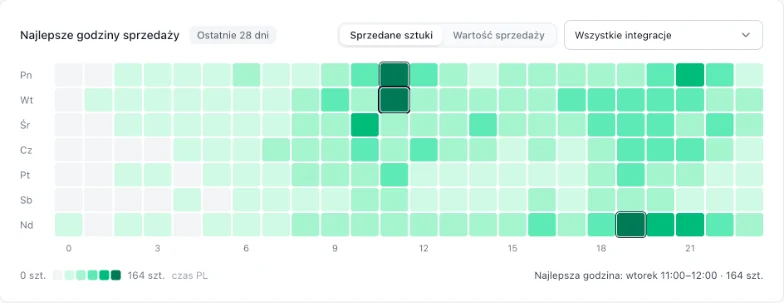
- Check the Best sales hours ("Najlepsze godziny sprzedaży") map on the Dashboard. It shows units sold or sales value for every hour of the week over the last 28 days, in total or for a selected integration. The darker the slot, the more sales.
- Find the empty hours and the best ones. Light slots are candidates for an overnight pause or a lower CPC. Dark ones are candidates for a higher bid and a bigger budget.
- Start with one change. Begin with an overnight pause or an evening peak on a few campaigns. After 2 weeks, compare cost, sales and ROAS with the previous period in the Campaigns ("Kampanie") tab.
- Add more schedules. Once the first one works, add the next. Several simple schedules are easier to control than one complicated one.
Several schedules on one campaign
A campaign can have several schedules. They all run at the same time, so it's worth knowing two rules:
- Status: the campaign shows only when all of its schedules allow it. Two "Turn on during scheduled hours" schedules with non-overlapping hours (e.g. morning and evening) will stop the campaign completely. If the campaign should run in several time windows, select them all in one schedule.
- CPC and budget: amount changes add up, and percentage changes multiply. Example: +20% and +10% in the same hour give +32% in total.
Common mistakes
- Two "Turn on" schedules with non-overlapping hours. The campaign stops showing entirely. Select all time windows in one schedule.
- A manually paused campaign. A manual pause takes priority over a schedule. If the schedule is supposed to turn the campaign on, the campaign has to be on.
- Looking for goal campaigns in the list. Mink manages the bids and budget of goal campaigns, so you can't assign a schedule to them and they don't appear in the list.
- Testing for too short a time. Sales on Allegro depend heavily on the day of the week. Judge a change after at least 14 days.
- Higher CPC with no budget headroom. Raising the bid for the evening makes the budget run out sooner. Combine the CPC change with a daily budget change in the same schedule.