
Allegro Ads reports by e-mail: campaign results delivered to your inbox
Instead of exporting data and assembling it in a spreadsheet every Monday, set up a report once. Mink will e-mail it daily, weekly or monthly. You decide the level of detail, the time period and who receives it.
- You set up a report in 3 steps: Basics ("Podstawy") with level, time range and granularity, Filters ("Filtry") and Delivery ("Wysyłka") with frequency and recipients.
- Levels: account, integration, campaign, ad group or product.
- Delivery: one-time, daily, weekly (on a chosen day) or monthly, to any number of e-mail addresses.
- You can view the latest report in a preview or download it from the report list.
What a report contains
A report collects the key ad metrics for a chosen period, including cost, clicks, impressions, CTR, number and value of sales from ads, ROI and average CPC, along with the currency. Depending on the level, you get one row for the whole account or separate rows for integrations, campaigns, ad groups or products.
Step-by-step setup
In the menu, choose Reports ("Raporty") and click Add report ("Dodaj raport").
-
Basics
- Report name ("Nazwa raportu"), e.g. "Weekly campaign report".
- Report level ("Poziom raportu"): Account ("Konto"), Integration ("Integracja"), Campaign ("Kampania"), Ad group ("Grupa reklam") or Product ("Produkt").
- Time range ("Zakres czasu"): last 7 or 30 days, current or previous month, quarter or year, or a custom date range.
- Data granularity ("Granulacja danych"): no granularity (total for the period), per day or per week.
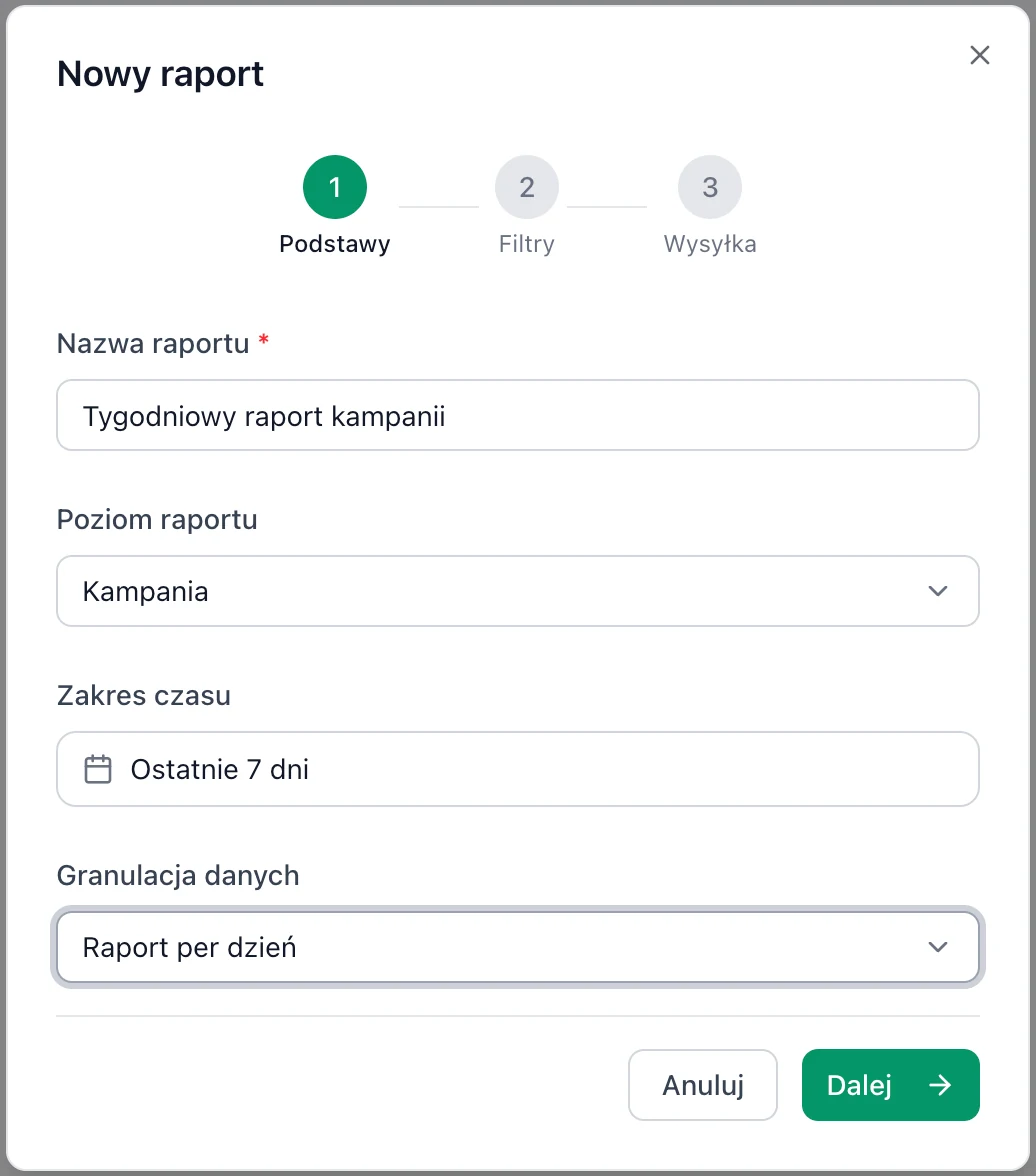
Step 1, Basics: a campaign-level report for the last 7 days, broken down by day. -
Filters
In the Filter by ("Filtrowanie po") field you can narrow the report to selected integrations, campaigns, ad groups or products. No filter ("Bez filtra") covers everything at the chosen level.
-
Delivery
- Delivery frequency ("Częstotliwość wysyłki"): one-time, daily, weekly (you choose the day of the week) or monthly.
- Start date ("Data rozpoczęcia") and an optional end date ("data zakończenia"), after which the report stops being sent.
- Recipients ("Odbiorcy"): enter an e-mail address and click Add ("Dodaj"). You can add several addresses.
Click Save report ("Zapisz raport").
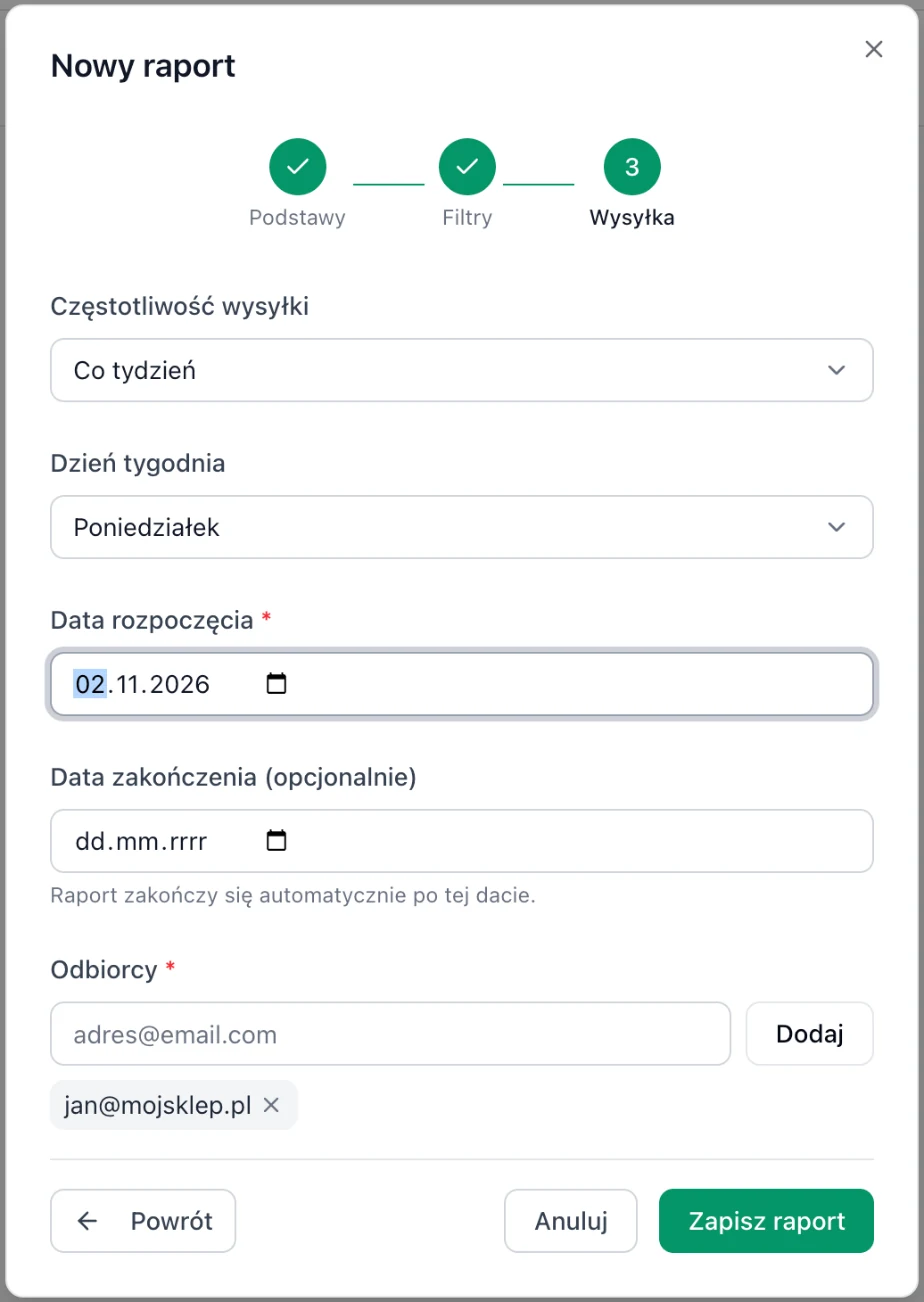
Step 3, Delivery: a weekly report every Monday, starting November 2, to one recipient.
Report list
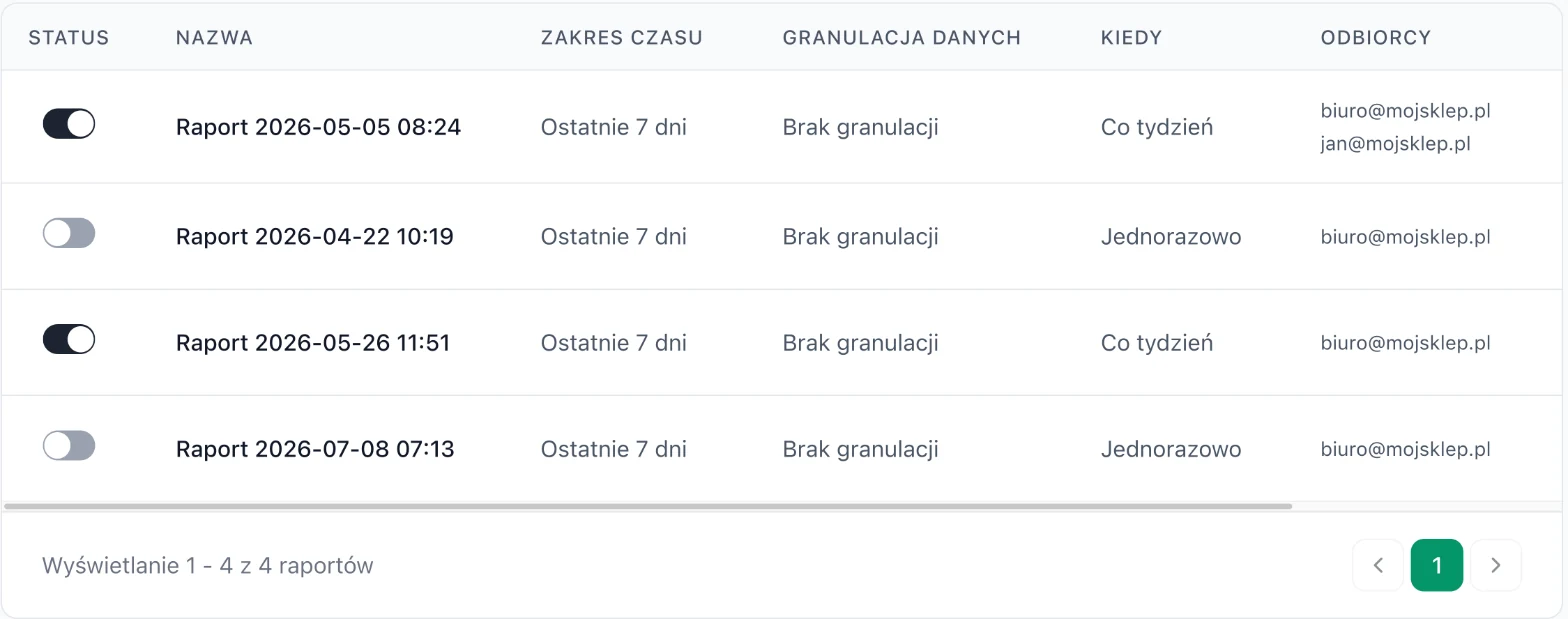
The list shows each report with its time range, granularity, frequency and recipients. The toggle in the Status column turns delivery on or pauses it. In the actions column:
- Preview the latest generated report ("Podgląd ostatniego wygenerowanego raportu"): a data table without opening your inbox,
- Download the latest generated report ("Pobierz ostatni wygenerowany raport"): a file for further work, e.g. in a spreadsheet,
- Edit ("Edytuj") and Delete ("Usuń").
Upload it to the free audit: in 10 seconds you'll see which campaigns and offers are losing money and where you overpay for CPC.
6 report examples
1. Monday summary
Account · last 7 days · per day · weekly on Monday
One e-mail to start the week: how much ads cost, how much they brought in sales and what each day looked like.
2. Daily campaign review
Campaign · last 7 days · no granularity · daily
Every morning you can see which campaigns are losing ROAS. It's a good starting point for suggestions and automation rules.
3. Monthly costs
Integration · previous month · no granularity · monthly
Ad costs broken down by marketplace, sent automatically to your accounting address.
4. Products in a campaign
Product · last 30 days · filter: selected campaign · weekly
Which products in the campaign sell and which only collect clicks. A ready list for exclusions.
5. Promotion summary
Campaign · custom range (promotion days) · per day · one-time
After Black Week or a sale, you get the result for each day of the promotion in one file.
6. The quarter week by week
Account · current quarter · per week · monthly
Shows whether cost and ROAS are moving in the right direction, without the noise of individual weaker days.
Prefer to watch results live? The Dashboard and the Campaigns ("Kampanie") tab in the panel show cost, sales and ROAS for any date range.