
Manual campaigns in Allegro Ads: full control over offers, CPC, budget and placements
A manual campaign gives you full control: you choose the offers, the CPC bid, the budget and the placements yourself. Mink makes it easier to run: it suggests the minimum CPC, lets you filter and import offers, and you can restore any version of your settings.
- You can choose offers in 4 ways: manual list, advanced filters, list import or Bestsellers.
- You set the CPC manually or pick Use minimum CPC ("Użyj minimalnego CPC"). The form shows the minimum bid for the selected products.
- The budget can be daily, total or both. A campaign without an end date requires a daily budget.
- You can assign schedules to a manual campaign and cover it with automation rules.
Step-by-step setup
-
Add a Manual campaign
In Campaigns ("Kampanie"), click Add campaign ("Dodaj kampanię") and choose the Manual type. Enter a name (at least 3 characters), choose a marketplace and click Next ("Dalej"). You can't change the campaign type after it's created.
-
Fill in the form
The form has these sections: Campaign basics ("Podstawy kampanii") with dates, Products ("Produkty"), Campaign budget ("Budżet kampanii") with CPC, Placements ("Miejsca docelowe") and Schedules ("Harmonogramy"). The summary on the right shows what you have already set.
-
Save
Click Add campaign. Mink sends the campaign to the marketplace right away, but it may take a moment to go live there. Statistics appear with a delay.
Choosing offers
| Method | How it works | New offers |
|---|---|---|
| Manual list ("Lista manualna") | You select specific offers. You search by name, SKU or EAN and filter by price, brand, category and marketplace. | Not added automatically. |
| Advanced filters ("Filtry zaawansowane") | You set rules, e.g. name, category, brand, price. | Can be added automatically if they match the rules. |
| Import list ("Importuj listę") | You paste offer IDs or upload a CSV/TXT file. | Not added automatically. |
| Bestsellers ("Bestsellery") | Mink picks your best-selling offers every day. More about Bestsellers. | The selection refreshes daily at 8:00. |
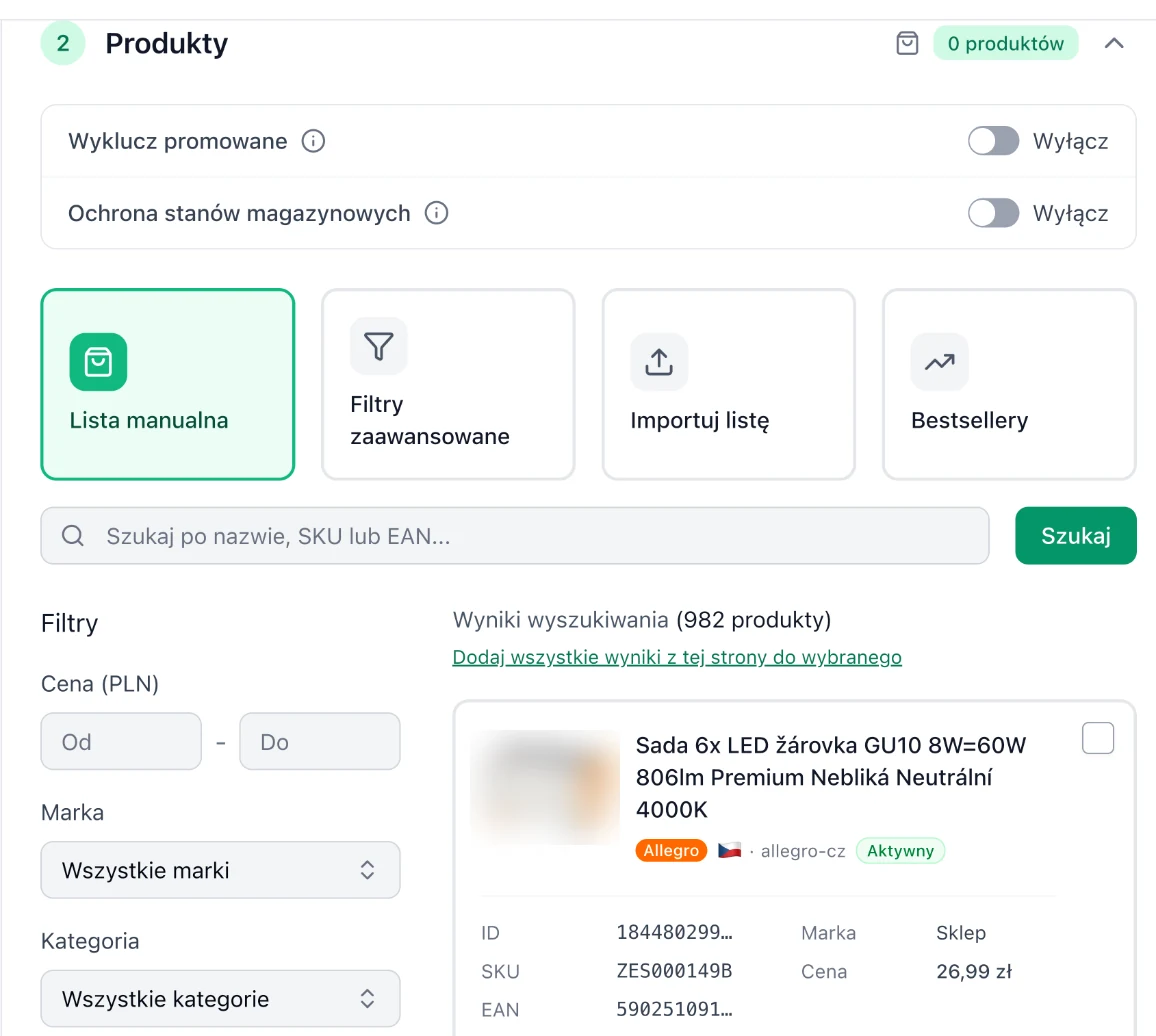
Offer exclusions. In the same section you can skip offers promoted on Allegro and offers with low stock, meaning fewer than 5 units.
CPC bid
In the Campaign budget section you choose a bidding strategy:
- Manual (CPC) ("Ręczna (CPC)"): you enter the maximum cost per click. The form shows the minimum CPC for the selected products. If your bid is lower, some products won't be advertised, and the form shows how many.
- Use minimum CPC: Mink sets the lowest bid at which every selected product can be advertised.
You can also change the bid later directly in the Max CPC ("Maks. CPC") column of the campaigns table.
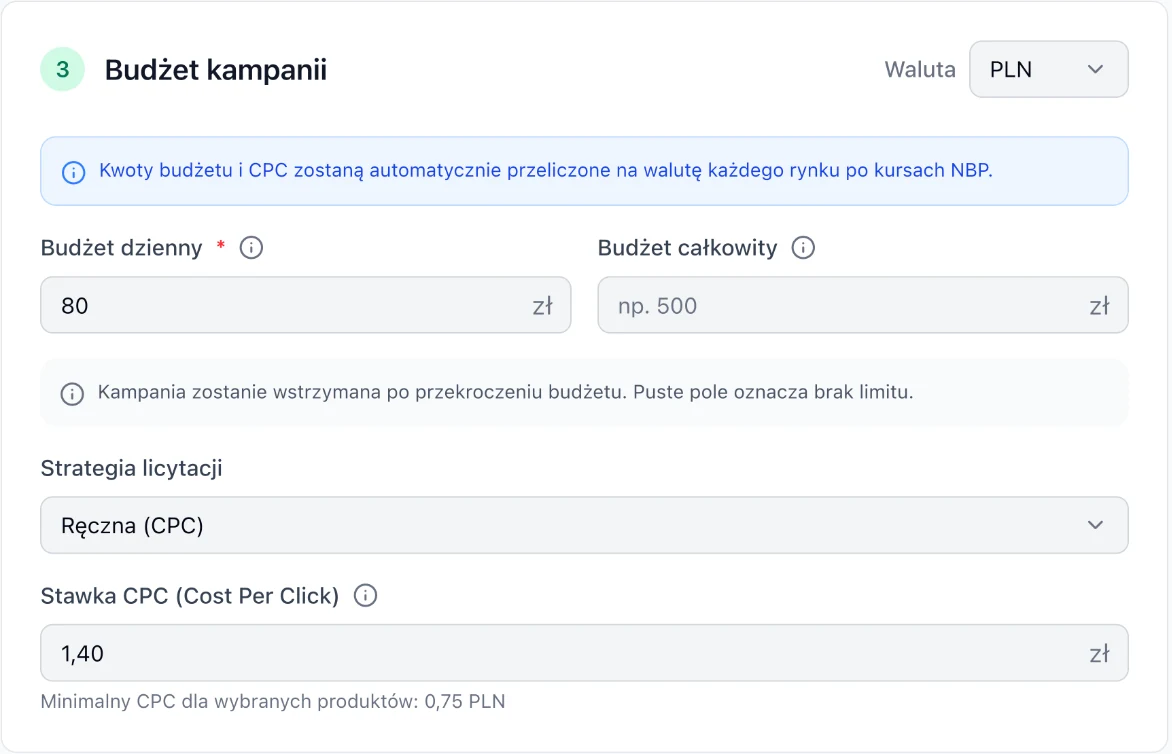
Budget and multiple marketplaces
- The daily budget is the maximum amount for one day, and the total budget is the limit for the entire campaign duration. You must set at least one of them. An empty field means no limit.
- When the budget runs out, the campaign stops showing. The daily budget resets the next day.
- Cost appears in statistics with a delay, so don't treat it as a real-time balance.
- If the budget currency differs from the marketplace currency, amounts are converted at NBP (National Bank of Poland) rates.
- When a campaign covers two or more marketplaces, the budget is split equally by default. Turn on Custom budget split ("Własny podział budżetu") and enter a percentage for each one. The values must add up to 100%, and each marketplace must get more than 0%.
Placements
These are the places on the marketplace where your ads can appear, e.g. the homepage, search results or product pages. By default, the integration's default placements are selected. Each marketplace must have at least one placement.
A free 10-second audit shows which campaigns and offers are losing money and where you overpay for CPC. The results will help when you build your new structure in Mink.
Campaign structure examples
One campaign per category
Advanced filters: category · separate budget and CPC for each category
Each category has a different margin and level of competition, so it gets its own bid. New offers in the category are added automatically.
A separate campaign for your best offers
Bestsellers · higher CPC · larger daily budget
Your top-selling offers don't compete for budget with the rest of your catalog.
A list from the audit
Import list: offer IDs pasted or from a CSV/TXT file
Have a list of offers to test, e.g. ones flagged in an audit or prepared in a spreadsheet? Paste their IDs and you instantly have a ready test campaign.
A campaign without low-stock leftovers
Manual list + Stock protection + Exclude promoted
Ads don't spend budget on offers with only a few units left, or on offers already promoted on Allegro.
Campaign not showing ads? Check step by step
- Dates: has the campaign already started and not yet ended?
- Budget: has the daily or total budget run out?
- Schedules: does the current time fall within the active hours of the assigned schedules?
- Offers: is there a warning next to the campaign saying no eligible offer matches this selection ("Żadna kwalifikująca się oferta nie pasuje do tego wyboru")? Offers can drop out because of filters, exclusions, stock levels or a CPC that's too low.
- Integration: is the connection in Integrations ("Integracje") active and not requiring any action?
Undoing changes: in the ⋮ menu next to the campaign, choose Configuration history ("Historia konfiguracji"), click Restore this version ("Przywróć tę wersję"), review the form and save. The campaign keeps its current status. The history does not include schedules or suggestion settings.